CAMT Import
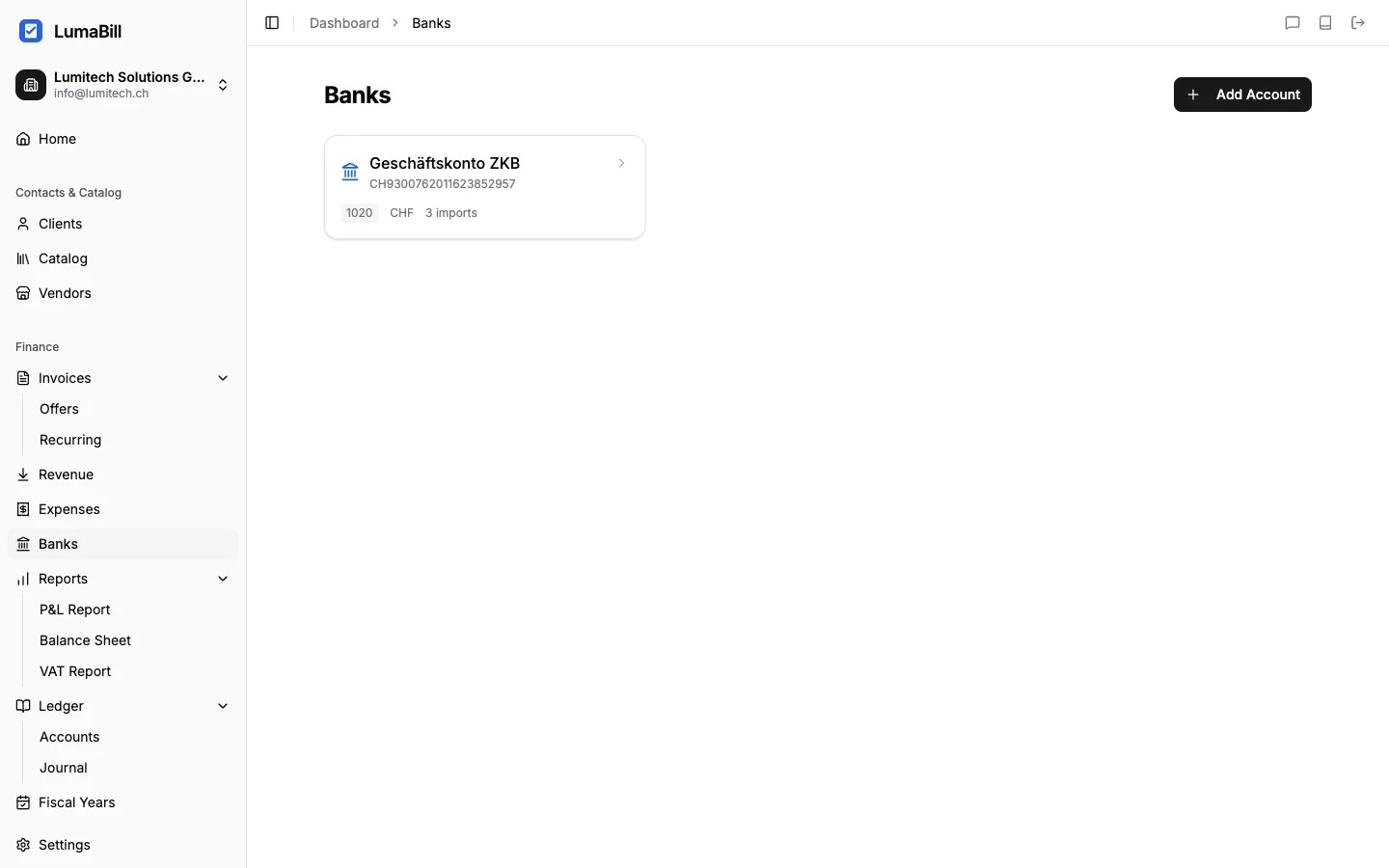
The CAMT import lets you bring bank transactions directly from your e-banking into Lumabill. Instead of manually entering payments and receipts, simply upload an XML file -- Lumabill automatically recognizes all transactions with their dates, amounts, and reference numbers.
Requirement: This feature requires the Bookkeeping module (PRO plan).
What Is CAMT?
CAMT (Cash Management) is an international ISO 20022 standard for the electronic exchange of bank transaction data. In Switzerland, virtually all banks use this format. Lumabill supports two variants:
- camt.053 -- Account statement: Contains all transactions for a given day. Ideal for daily or weekly reconciliation.
- camt.054 -- Debit/credit notification: Contains detailed information about individual transactions, including QR reference numbers. Ideal for automatic matching with invoices.
Tip: Most Swiss banks (UBS, Credit Suisse, Raiffeisen, PostFinance, ZKB, etc.) offer CAMT exports in their e-banking under "Account statements" or "Payment transactions."
Downloading a CAMT File
- Log in to your e-banking portal
- Navigate to Account statements or Documents
- Select the format camt.053 or camt.054 (XML)
- Choose the desired date range
- Download the file (file extension
.xml)
Which Format to Choose?
| Format | Best for | Detail level |
|---|---|---|
| camt.053 | Daily reconciliation | All transactions for a day |
| camt.054 | Invoice matching | Detailed info with reference numbers |
If your e-banking offers both formats, we recommend camt.054 for automatic matching against open invoices.
Importing a File into Lumabill
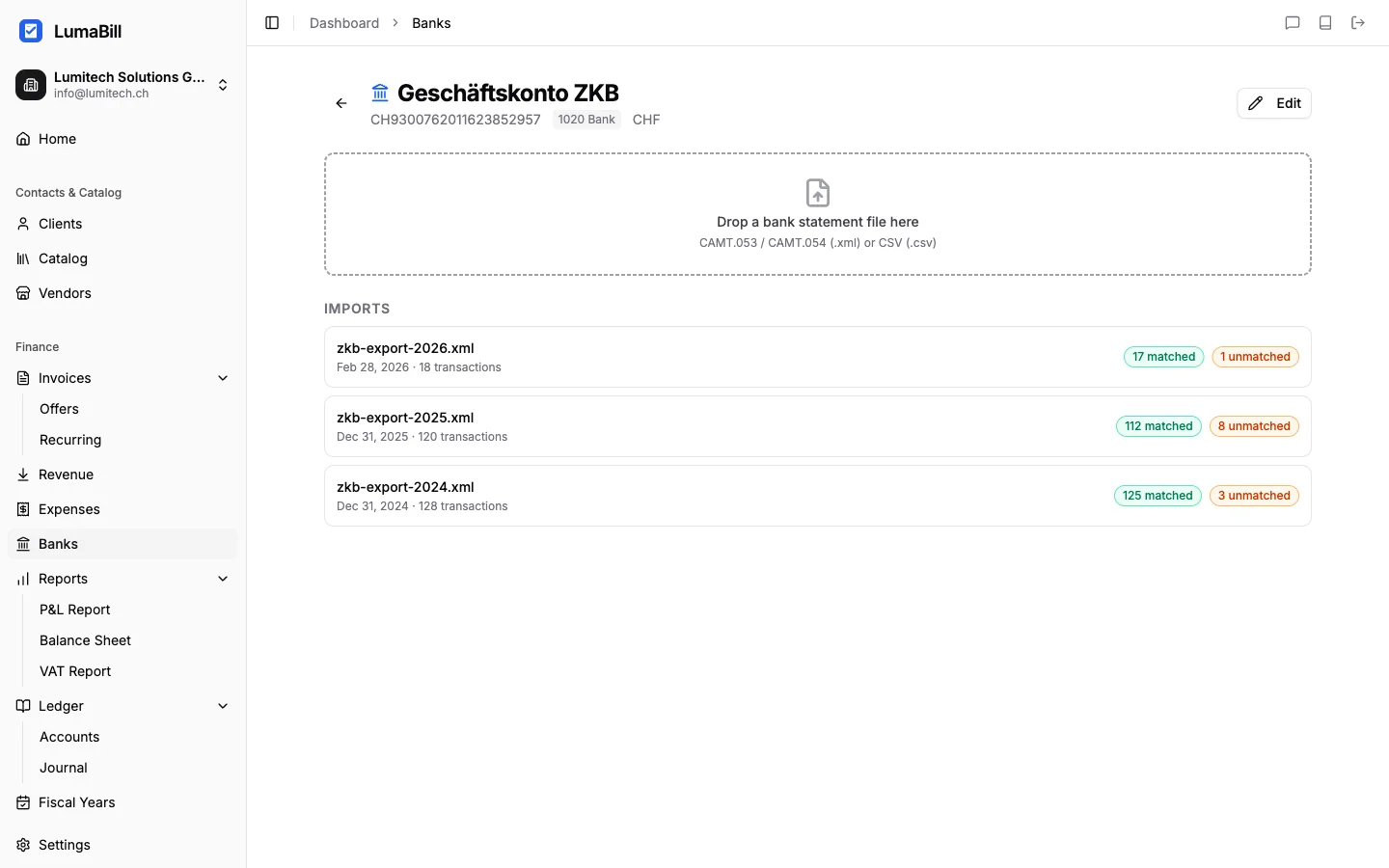
- Go to Bookkeeping > Banking > CAMT Import
- Click Upload file or drag and drop the XML file into the upload area
- Lumabill parses the file and shows a preview of all recognized transactions
What Gets Imported?
For each transaction, Lumabill extracts:
- Booking date and value date
- Amount and currency (CHF, EUR, etc.)
- Reference number (QR reference or ISR number)
- Sender / recipient (name and IBAN)
- Booking text (bank message)
Assigning a Bank Account
On your first import, you will be asked to select the corresponding bank account from your chart of accounts (e.g., "1020 Bank"). This mapping is saved for future imports.
Reviewing Imported Transactions
After the import, you will see a list of all transactions. Each transaction has a status:
- New -- Not yet reconciled
- Matched -- Assigned to an invoice or expense
- Ignored -- Manually marked as irrelevant
Tip: Duplicate transactions are detected automatically. If you accidentally import the same file twice, Lumabill will warn you and skip entries that already exist.
Common Issues
The file is not accepted
- Make sure the file is an XML file in camt.053 or camt.054 format
- CSV or PDF files are not supported
- The file must not exceed 10 MB
Transactions are missing
- Check the date range of the downloaded file
- Some banks only make CAMT files available the following business day
What's Next?
Once your transactions are imported, you can match them against open invoices and expenses. Continue reading at Bank Reconciliation.