QR Payment Slips
Since 2022, the QR payment slip is the official standard for payments in Switzerland. Lumabill automatically generates compliant QR invoices following the Swiss QR-Code standard (ISO 20022), so your clients can pay invoices easily via mobile banking.
What Is a QR Invoice?
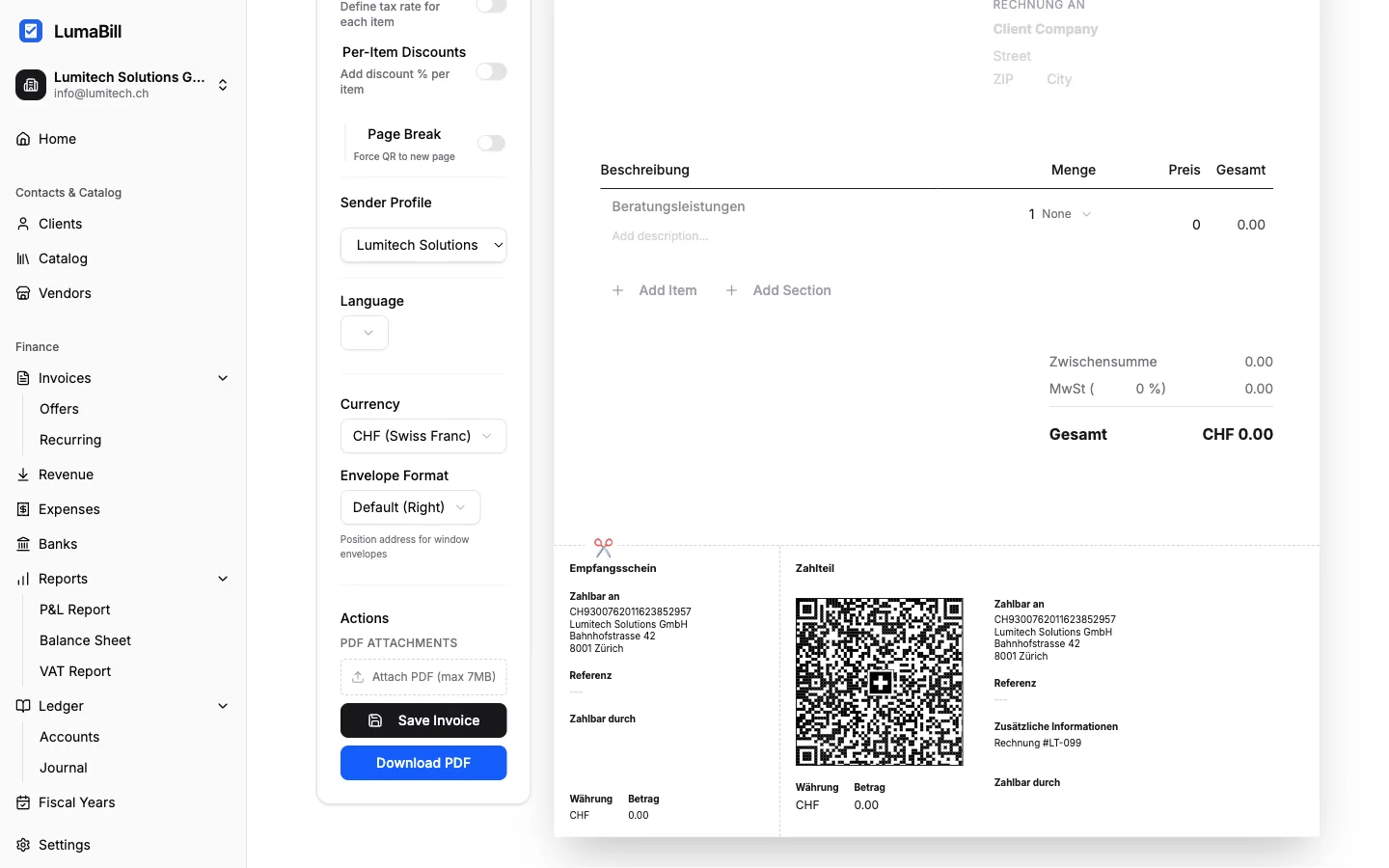
A QR invoice is a standard invoice with an integrated QR code at the bottom of the page. This QR code contains all payment information -- recipient, IBAN, amount, and reference number -- in a standardized format. The client scans the code with their banking app and all fields are automatically filled in.
Automatic Generation
You don't need to do anything special to create QR payment slips. Lumabill generates the QR code automatically on every invoice, as long as your bank details are configured in your company profile. The payment slip includes:
- Account / Payable to -- Your IBAN and company address
- Reference -- QR Reference or Creditor Reference (auto-generated)
- Additional information -- Invoice number and details
- Payable by -- Client name and address
- Amount and currency -- CHF or EUR
IBAN vs. QR-IBAN
Lumabill supports two types of bank connections:
Regular IBAN (CH...)
- Works with any Swiss bank
- Uses the Creditor Reference (RF...) as payment reference
- Ideal for most freelancers and SMEs
QR-IBAN (CH...3...)
- Special IBAN for QR payment transactions
- Uses the QR Reference (26-digit number) as payment reference
- Enables automatic payment matching at your bank
- Available from your bank upon request
Tip: If you issue many invoices, a QR-IBAN is worth it. It allows incoming payments to be automatically matched to the correct invoice.
Reference Numbers Explained
Lumabill automatically generates a unique reference number for each invoice:
- QR Reference (with QR-IBAN) -- 26-digit number plus check digit, e.g. 210000000003139471430009017. Follows the former ESR format.
- Creditor Reference (with regular IBAN) -- Starts with RF, followed by check digits and a reference, e.g. RF18539007547034. International standard (ISO 11649).
Setting Up Your Bank Details
To configure your bank connection for QR invoices:
- Go to Settings > Company Profile
- Enter your IBAN or QR-IBAN
- Verify that your company address is complete (required for the QR payment slip)
- Save your changes
Tip: After setup, test an invoice by opening the PDF preview and scanning the QR code with your own banking app.
Scanning and Paying
Here is how your client pays the invoice:
- Open or print the invoice PDF
- Open the banking app on their smartphone
- Scan the QR code with the camera
- All payment details are automatically filled in
- Confirm the payment -- done
Frequently Asked Questions
Does the QR code work when printed? Yes, the QR code works both digitally on screen and printed on paper.
Can I use the QR payment slip without sending by email? Yes, simply download the PDF and send it however you prefer -- or print it out.
What about invoices in EUR? QR invoices also work in EUR. The payment slip is correctly generated with EUR as the currency.
What's Next?
- Creating Invoices -- Learn about the full invoice editor
- Sending Invoices -- Send QR invoices by email