Creating Invoices
Lumabill lets you create professional invoices in just a few steps -- complete with Swiss QR payment slips, VAT, and optional discounts.
Starting a New Invoice
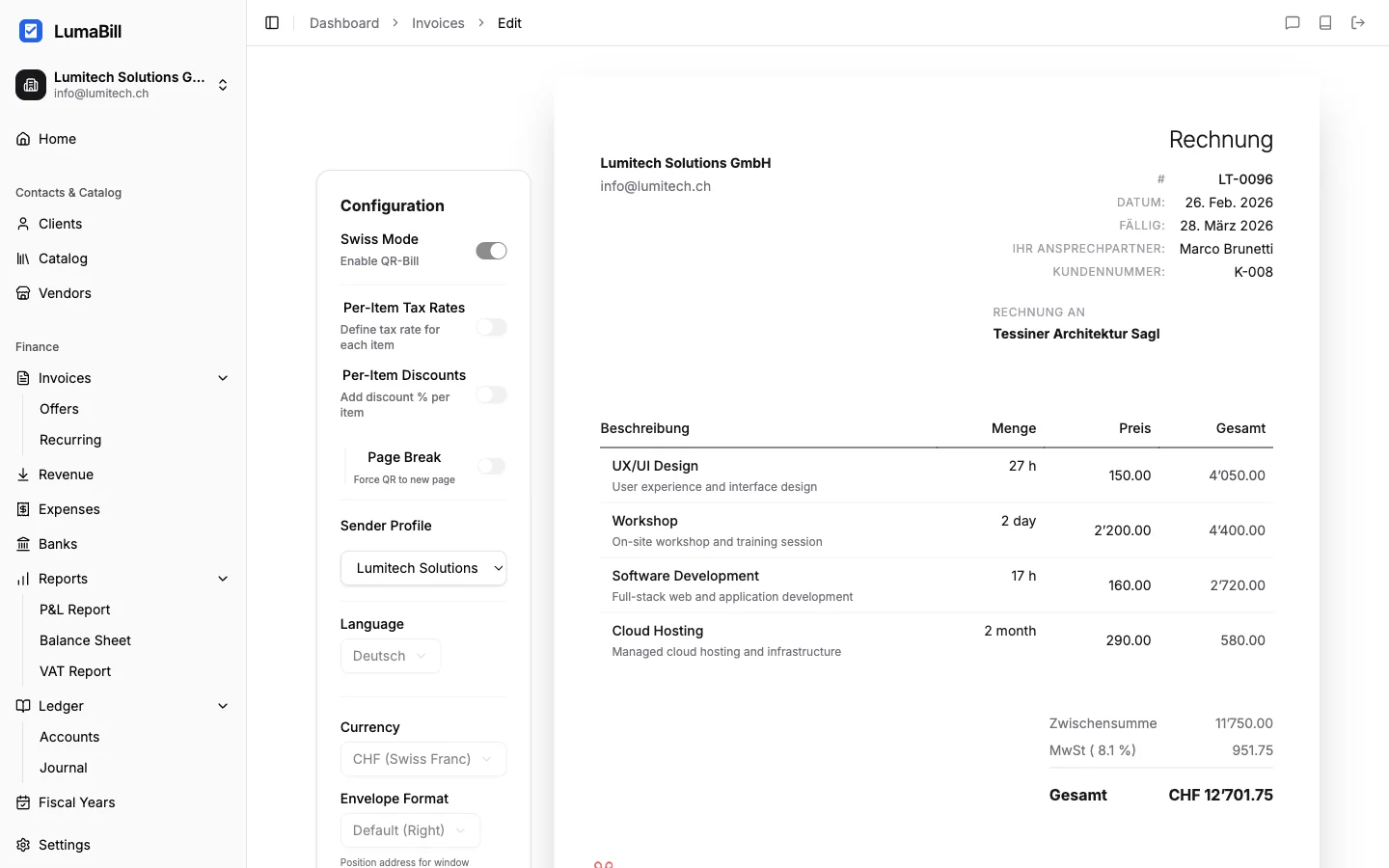
Navigate to Invoices in the dashboard and click New Invoice. This opens the invoice editor where you can fill in all the details.
Select or Create a Client
Use the Client field to select an existing client or create a new one. Lumabill saves all client details (name, address, email) automatically, so next time you only need to start typing the name.
Tip: Keep your client data accurate -- it appears directly on the invoice and the QR payment slip.
Add Line Items
Add your invoice line items. For each item you can enter:
- Description -- What was the service or product delivered?
- Quantity -- Number of hours, units, or pieces
- Unit price -- Price per unit
- VAT rate -- 8.1%, 2.6%, 3.8%, or 0% (exempt)
- Discount -- Optional, as a percentage or fixed amount per line
Tip: If you frequently bill the same services, use the product catalog. You can insert items with a single click instead of typing everything manually.
Set Invoice Details
Configure the key invoice parameters:
- Invoice number -- Automatically generated, but can be customized
- Invoice date -- Defaults to today
- Payment terms -- Choose the term (e.g., 30 days), and the due date is calculated automatically
- Currency -- CHF or EUR
- Language -- German, French, Italian, or English
- Notes -- Optional remarks that appear on the invoice
Preview and Save as Draft
Before sending, you can view a PDF preview to see exactly what your client will receive -- including the QR payment slip at the bottom of the page.
Every new invoice is initially saved as a Draft. Drafts can be edited freely at any time without notifying the client.
Invoice Status Overview
Every invoice goes through the following statuses:
- Draft -- Not yet sent, fully editable
- Sent -- Delivered to the client, awaiting payment
- Paid -- Payment received, invoice closed
- Overdue -- Payment deadline has passed
Tips for Professional Invoices
- Complete sender details: Make sure your company profile is fully filled in (address, VAT ID, bank details)
- Correct VAT rates: Verify that the tax rates match your services
- Clear descriptions: Write line item descriptions so the client immediately understands what they are paying for
- Mind payment terms: 30 days is standard in Switzerland -- check your agreement with each client
What's Next?
- QR Payment Slips -- Learn how the QR code on your invoice works
- Sending Invoices -- Send invoices by email directly from Lumabill
- Offers & Quotes -- Create an offer first and convert it to an invoice