Offers & Quotes
With Lumabill PRO, you can create professional offers and quotes and convert them into invoices with a single click once accepted. This saves time and gives you a clear overview of your entire order workflow.
This feature requires a PRO subscription.
Why Use Offers?
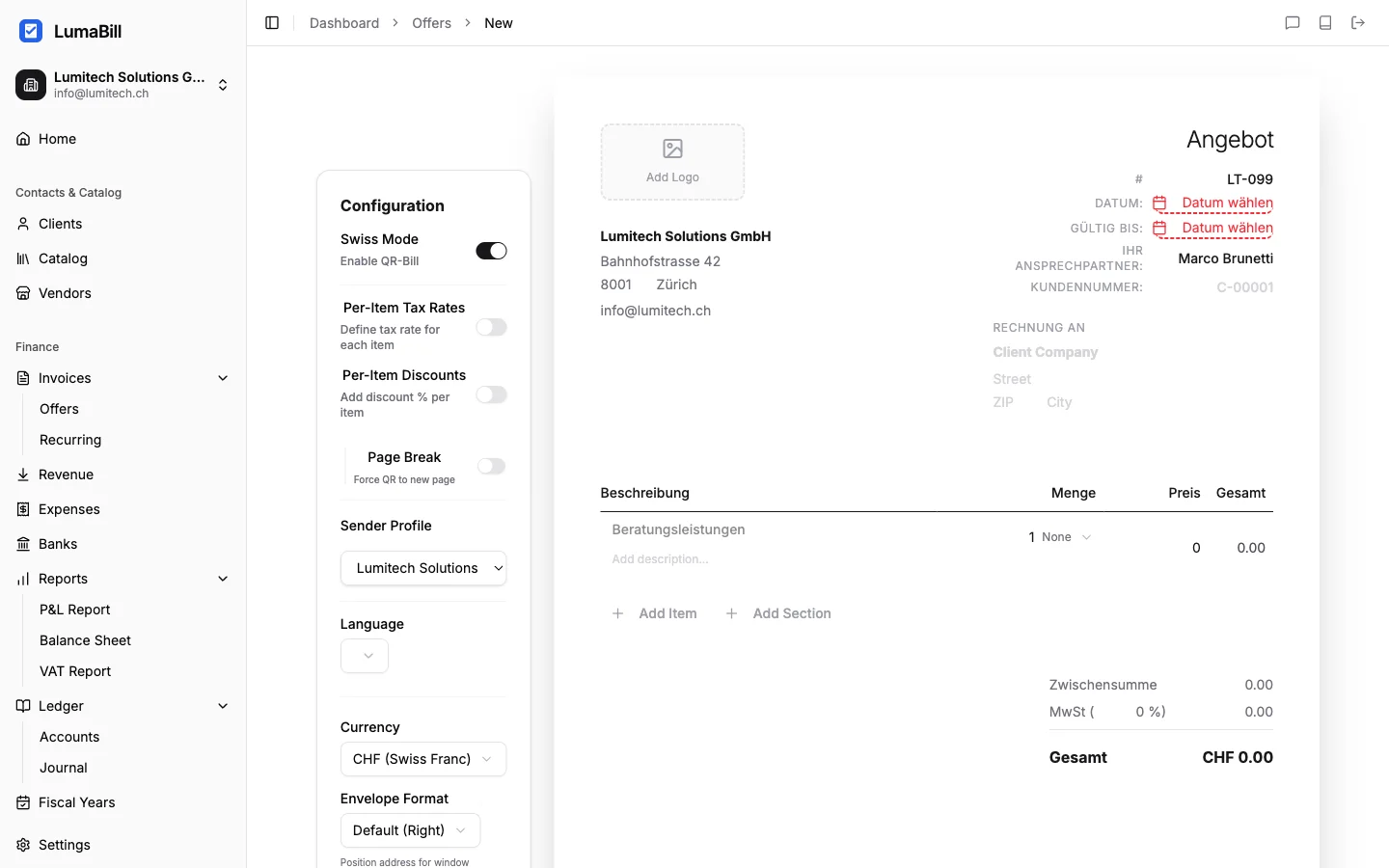
Before delivering a service, many clients want to see a binding offer first. With Lumabill, you create offers in the same familiar editor as invoices -- the same line items, the same formatting, the same professional appearance.
Benefits:
- Professional impression with your clients
- Seamless workflow from offer to invoice
- Time savings by carrying over all line items during conversion
- Status tracking -- always know where each offer stands
Creating a New Offer
- Navigate to Offers in the dashboard
- Click New Offer
- Select an existing client or create a new one
- Add line items -- just like with an invoice
- Set a validity date
- Save the offer as a draft
Tip: Set a realistic validity date (e.g., 30 days). This lets the client know how long the offer is valid.
Offer Statuses
Every offer goes through the following statuses:
- Draft -- Not yet sent, fully editable
- Sent -- Delivered to the client, awaiting response
- Accepted -- The client has accepted the offer
- Declined -- The client has declined the offer
Sending an Offer
Sending an offer works the same way as invoices:
- Open the offer
- Click Send
- Review the recipient email address
- Click Send
Your client receives a PDF of the offer by email.
Converting an Offer to an Invoice
Once your client has accepted the offer, you can convert it directly into an invoice:
- Open the accepted offer
- Click Convert to Invoice
- All line items, client information, and details are automatically carried over
- Adjust the invoice if needed (e.g., invoice date, payment terms)
- Save and send the invoice
Tip: You can still adjust line items after conversion -- for example, if the scope of work has changed.
Managing Offers
In the offers dashboard, you can see all your quotes at a glance:
- Filter by status (Draft, Sent, Accepted, Declined)
- Sort by date, client, or amount
- View the total value of all open offers
Tips for Successful Offers
- Detailed descriptions: The clearer the line items, the fewer questions from the client
- Set a validity date: Keep offers time-limited
- Follow up: If an offer has been sent for days without a response, ask politely
- Clarify terms: Mention payment conditions already in the offer
- Archive offers: Even declined offers remain stored in Lumabill
What's Next?
- Creating Invoices -- Learn more about the invoice editor
- Sending Invoices -- How to send the invoice created from an offer
- Recurring Invoices -- Automate regular billing