Recurring Invoices
With Lumabill PRO, you can set up recurring invoices that are automatically created at regular intervals. Perfect for subscriptions, monthly services, maintenance contracts, or rental billing.
This feature requires a PRO subscription.
When Are Recurring Invoices Useful?
Recurring invoices are ideal for any regular billing:
- Monthly services -- e.g., IT support, accounting, consulting
- Subscriptions -- Software, maintenance, hosting
- Rental agreements -- Office space, equipment rental
- Retainer agreements -- Fixed monthly fees
Setting Up a Recurring Invoice
- Navigate to Invoices > Recurring in the dashboard
- Click New Recurring Invoice
- Select a client
- Add line items -- these will remain the same on every generated invoice
- Configure the schedule
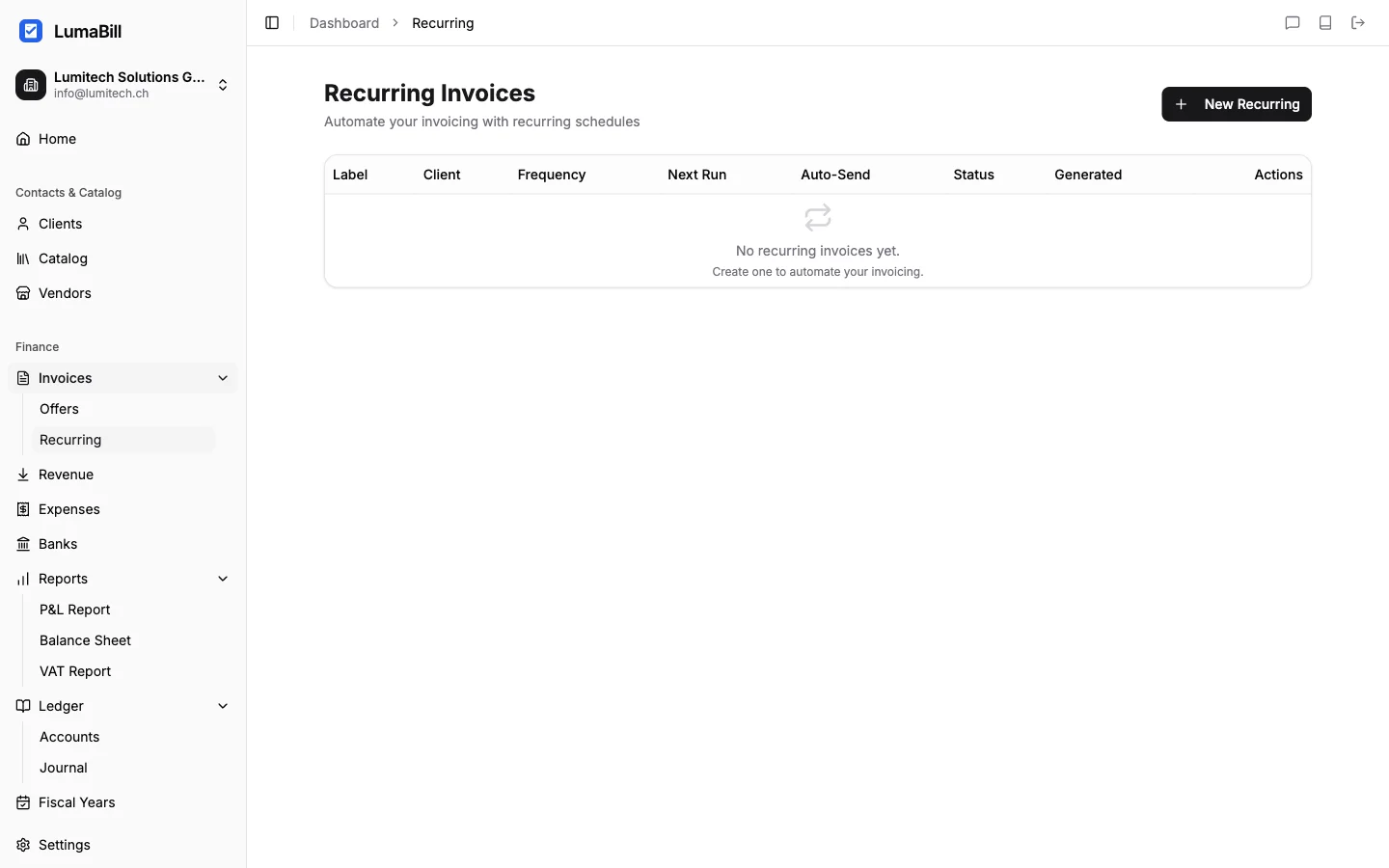
Configuring the Schedule
Set how often and when the invoice should be created:
- Interval -- Choose from:
- Weekly
- Monthly
- Quarterly
- Semi-annually
- Annually
- Start date -- When should the first invoice be created?
- End date (optional) -- When should the series end? Leave empty for unlimited duration
Tip: For most Swiss SMEs, monthly or quarterly intervals are most common. Choose the interval that matches your agreement with the client.
Automatic Invoice Generation
When the scheduled time arrives, Lumabill automatically creates a new invoice based on your template:
- The invoice receives a new invoice number
- The invoice date is set to the current date
- The due date is calculated based on your payment terms
- All line items and amounts are copied from the template
The generated invoice appears as a draft in your invoice list, so you can review it before sending.
With automatic sending enabled, the invoice goes to the client's email address and, as a copy, to every address you stored in the client details under Additional recipients (CC).
Managing Recurring Invoices
In the recurring invoices dashboard, you can see all series at a glance:
- Active -- The series is running and creating invoices regularly
- Paused -- The series is temporarily stopped
- Ended -- The series has reached its end date or was manually stopped
You can edit, pause, or end any series at any time.
Updating the Template
If prices or services change, you can update the recurring invoice template at any time:
- Open the recurring invoice
- Edit line items, prices, or other details
- Save the changes
Tip: Changes to the template only affect future invoices. Previously generated invoices remain unchanged.
Tips for Recurring Invoices
- Review generated invoices: Even with automatic creation, a quick check before sending is worthwhile
- Mind contract end dates: Set an end date when the contract is time-limited
- Price adjustments: Update the template promptly when prices change
- Inform your client: Let your client know they will receive regular invoices
- Pause instead of delete: For temporary interruptions, pause the series rather than deleting it
What's Next?
- Creating Invoices -- Invoice creation basics
- Sending Invoices -- How to send the generated invoices
- Offers & Quotes -- Create offers before billing