Recording Non-Invoice Income
Not all business income comes through invoices. Cash sales, interest income, grants, or refunds also need to be recorded. In Lumabill, you can easily and systematically capture these "other revenues" alongside your regular invoicing.
Note: Non-invoice income recording is a PRO feature. Activate your PRO subscription under Settings.
When Do You Need This Feature?
Common examples of non-invoice income:
- Cash sales -- Revenue from direct cash transactions without a formal invoice.
- Interest income -- Bank interest credits.
- Subsidies and grants -- Government or cantonal funding.
- Insurance reimbursements -- Payouts from insurance claims.
- Owner contributions -- Personal funds deposited into the business.
- Miscellaneous income -- Any other revenue not processed through accounts receivable.
Creating a New Income Entry
Navigate to Revenue in the dashboard and click New Income. Fill in the following fields:
- Amount -- The income amount in your base currency (CHF).
- Date -- The date the payment was received.
- Description -- A meaningful label (e.g., "Cash sales November market stand").
- Category -- Assign the income to a revenue category.
- Account -- The bank account or cash register where the income was received.
- VAT Rate -- If the income is subject to VAT, select the appropriate rate.
- Receipt -- Optionally attach a receipt (voucher, bank statement).
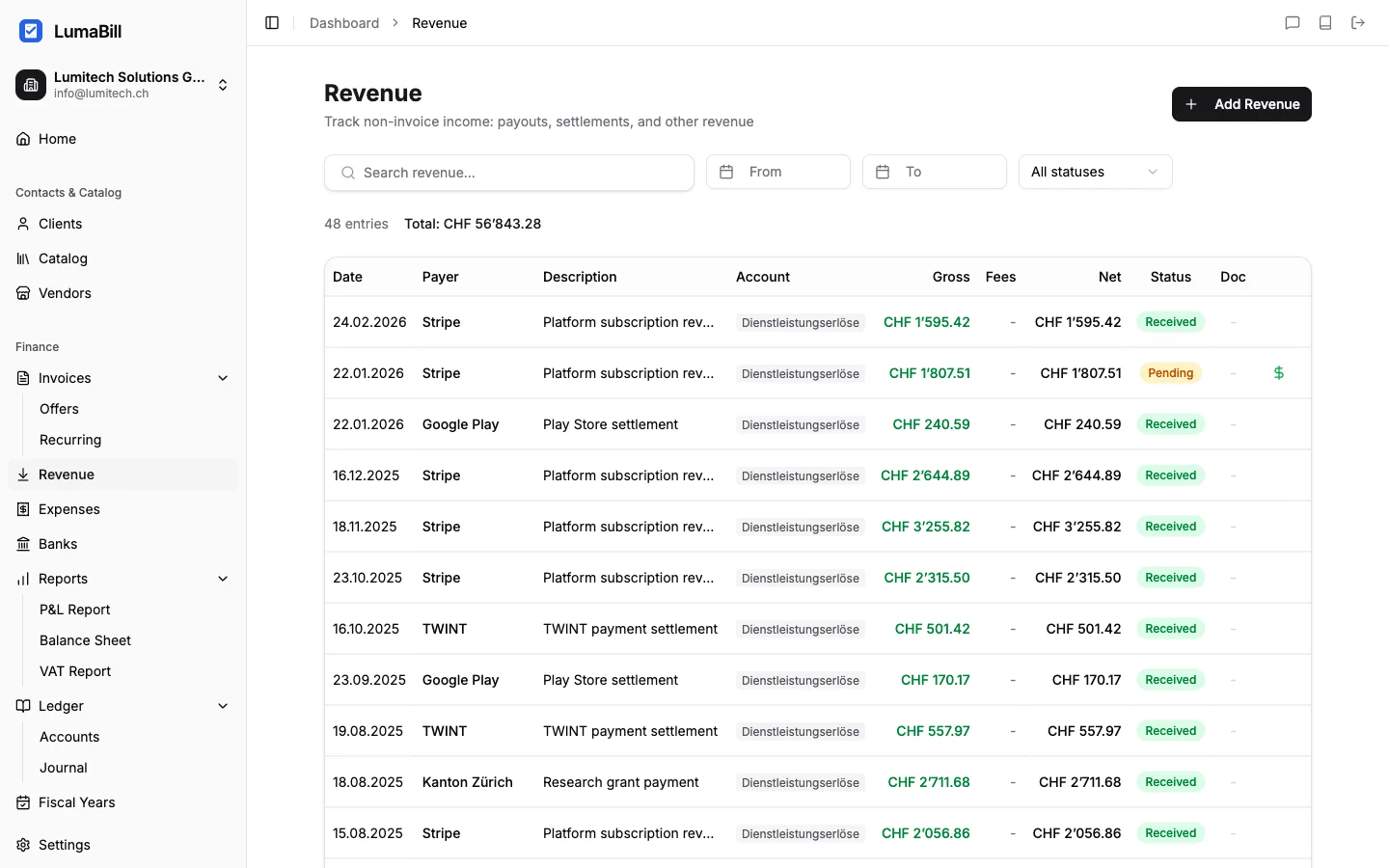
Managing Income Entries
The income overview displays all recorded entries. You can:
- Filter by date range, category, or account.
- Sort by date or amount.
- Search by description.
Editing or Deleting an Entry
Click on an income entry to edit it. To delete it, use the delete icon. Income entries in closed fiscal years are read-only.
Bookkeeping Integration
Simple Bookkeeping (Milchbuechli)
In simple mode, each recorded income entry automatically appears in the income/expense ledger on the income side. Together with your invoice payments, this gives you a complete picture of your earnings.
Double-Entry Bookkeeping
In double-entry mode, Lumabill automatically creates a journal entry:
- Debit: Bank account or cash register
- Credit: Revenue account (e.g., Other Revenue, Interest Income)
You can adjust the revenue account as needed to assign the income to the correct account in your chart of accounts.
Distinction from Invoice Revenue
Revenue generated through Lumabill invoices is automatically recorded when a payment is registered. Use the "Non-Invoice Income" feature only for earnings that do not go through the invoicing system. This prevents duplicate entries.
Example: Recording a Cash Sale
- Go to Revenue > New Income.
- Enter the amount (e.g., CHF 150.00).
- Select today's date.
- Description: "Cash sale at weekly market".
- Category: "Product Sales".
- Account: "Cash Register".
- VAT: 8.1%.
- Click Save.
Tips
- Record cash income daily to avoid losing track.
- Use descriptive labels -- they make it easier to find entries later.
- At month-end, verify that all non-invoice income has been captured.
What's Next?
- Recording Stripe, SumUp & Twint -- Record payment processor payouts with fees.
- Tracking Expenses -- Record your business expenses.
- Profit & Loss -- See the full overview of your revenue and costs.
- Journal Entries -- Understand the automatically created bookings.