Tracking Expenses in Lumabill
Recording business expenses accurately is essential for clean bookkeeping. Lumabill lets you systematically track, categorize, and attach receipts to all your company expenses.
Note: Expense management is a PRO feature. Activate your PRO subscription under Settings to get access.
Creating a New Expense
Navigate to Expenses in the dashboard and click New Expense. Fill in the following fields:
- Amount -- The gross amount of the expense in your base currency (CHF).
- Date -- The date of the expense (receipt date).
- Vendor -- Select an existing vendor or create a new one directly in the form.
- Category -- Assign the expense to a category (e.g., Office Supplies, Travel, Software).
- VAT Rate -- Select the applicable Swiss VAT rate (8.1%, 2.6%, or 0%).
- Description -- An optional note about the expense.
Attaching a Receipt
You can upload a receipt for every expense. Click Attach Receipt and select an image or PDF. Supported formats: JPG, PNG, and PDF (max. 10 MB).
Managing Expenses
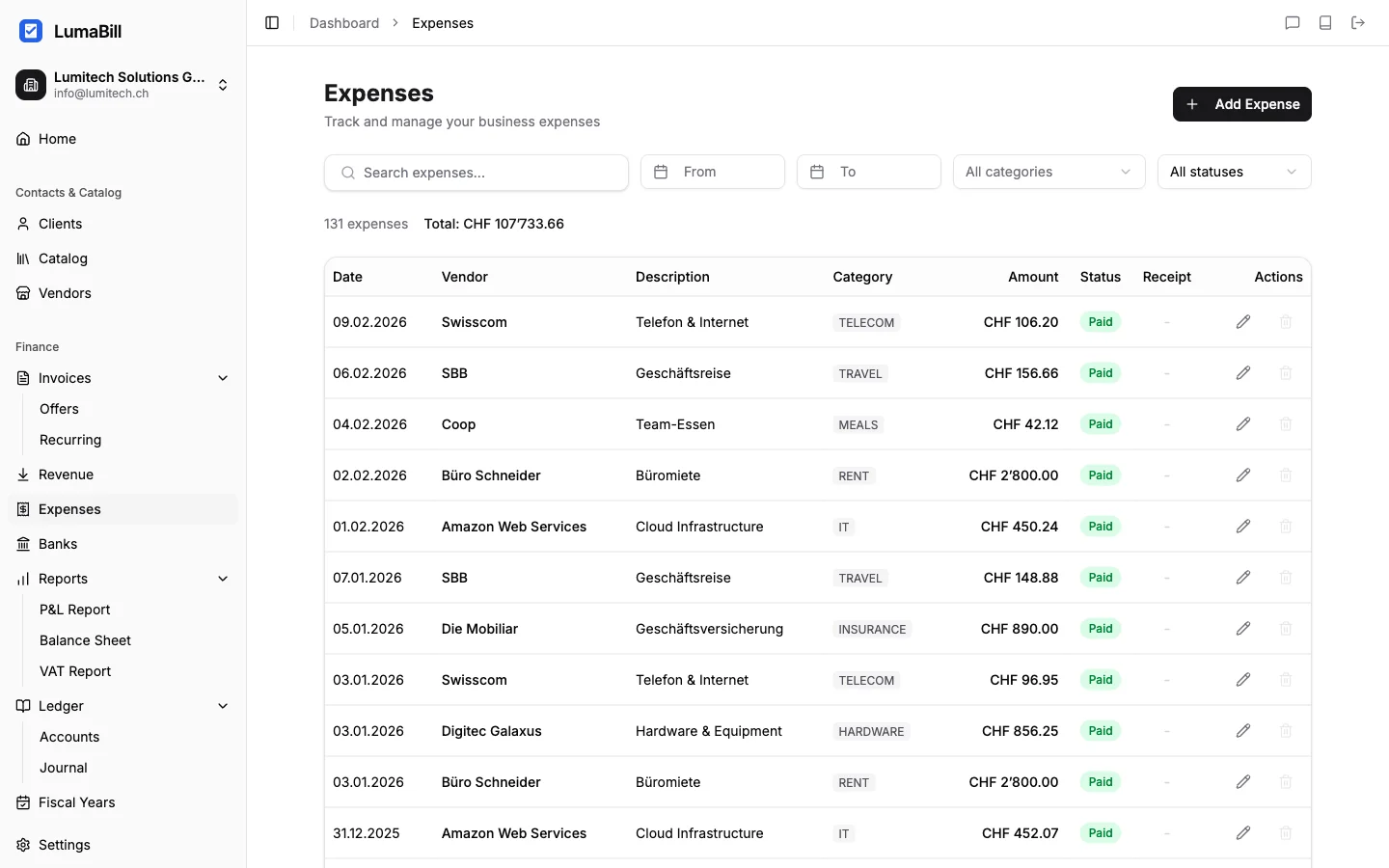
The expense overview shows all recorded expenses in a table. Use these tools to stay organized:
- Filter by date range, vendor, or category.
- Sort by date, amount, or vendor.
- Search by description or vendor name.
Editing or Deleting an Expense
Click on any expense to edit it. Modify the fields you need and save. To delete an expense, click the delete icon. Expenses in closed fiscal years cannot be modified.
Categories
Lumabill provides the most common Swiss expense categories by default, based on the SME chart of accounts. You can create additional categories in Settings.
Typical categories include:
| Category | Example |
|---|---|
| Office Supplies | Printer cartridges, paper |
| Travel | Train tickets, hotels |
| Software & IT | Cloud subscriptions, licenses |
| Insurance | Business liability |
| Vehicle Costs | Fuel, maintenance |
Bookkeeping Integration
Simple Bookkeeping (Milchbuechli)
In simple mode, each expense automatically appears as an entry in the income/expense ledger. No offsetting accounts are needed.
Double-Entry Bookkeeping
In double-entry mode, Lumabill automatically creates a journal entry with the appropriate expense account (debit) and the creditor or bank account (credit). You can adjust the offsetting account if needed.
Tips for Efficient Expense Tracking
- Record expenses promptly, ideally on the same day.
- Use the receipt scanning feature to auto-fill data from receipts.
- Regularly check the expense overview for missing receipts.
- Use the vendor directory to quickly assign recurring expenses.
What's Next?
- Receipt Scanning -- Let AI automatically read your receipts.
- Managing Vendors -- Build your vendor directory.
- Profit & Loss -- See how your expenses affect your bottom line.