Receipt Scanning with AI
Lumabill uses artificial intelligence to automatically extract data from your receipts. Simply photograph a receipt or upload an image -- Lumabill detects the amount, date, vendor, and category, then auto-fills the expense form for you.
Requirements: Receipt scanning requires a PRO subscription and the AI module enabled. Activate both under Settings > Subscription.
How to Scan a Receipt
Step 1: Create an Expense and Upload the Receipt
Go to Expenses and click New Expense. Then click Scan Receipt or drag an image directly into the upload area.
Several receipts at once: select or drop multiple files together. Lumabill then creates one draft per receipt (like the email inbox) and lists them under Review drafts in the expense list. Each receipt uses one AI credit.
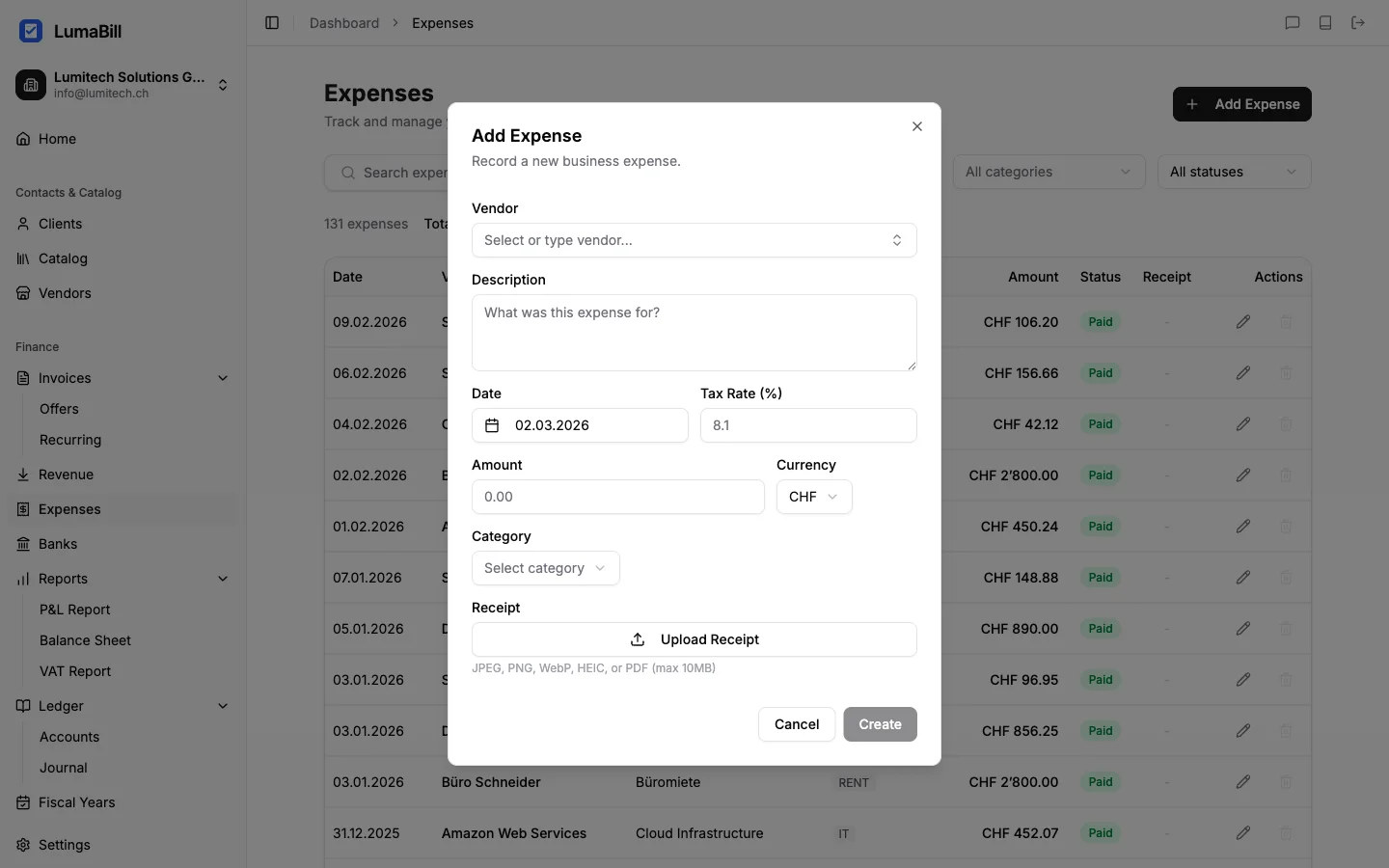
Step 2: Wait for AI Recognition
Lumabill analyzes the receipt and extracts the following information:
- Amount -- The total amount on the receipt.
- Date -- The receipt date.
- Vendor -- The name of the store or company.
- Category -- A suggested expense category.
- VAT amount -- If shown on the receipt.
Recognition typically takes just a few seconds.
Step 3: Review Results and Save
The extracted data is populated into the form fields. Review the information carefully and correct anything if needed. Then click Save.
Supported Formats
| Format | Maximum Size |
|---|---|
| JPG / JPEG | 10 MB |
| PNG | 10 MB |
| PDF (single page) | 10 MB |
For best results, ensure:
- Good lighting -- Avoid shadows and reflections.
- Sharpness -- Text on the receipt should be clearly legible.
- Completeness -- The entire receipt should be visible in the image.
AI Quota
Each scan uses one unit of your monthly AI quota. The available quota depends on your subscription plan. You can check your current usage under Settings > Subscription.
Tips for Optimal Results
- Photograph receipts on a contrasting background (e.g., a dark table).
- Avoid folded or crumpled receipts -- smooth them out first.
- For thermal paper receipts: scan them promptly, as the print fades over time.
- If the AI doesn't recognize a vendor, you can select one manually and the receipt image will still be saved.
Frequently Asked Questions
What happens if recognition fails?
If the AI cannot extract the data, the form fields will be left empty. You can still enter the expense manually. The receipt image remains attached.
Are my receipts stored securely?
Yes. Receipt images are stored encrypted in the EU and are only accessible to your account. AI processing is handled by AWS Bedrock in the EU region.
What's Next?
- Tracking Expenses -- Learn more about manual expense entry.
- Managing Vendors -- Link recognized vendors to your directory.
- VAT Report -- See how your expenses flow into VAT reporting.