Create Your First Invoice
Now that your company is set up and your bookkeeping mode is chosen, you can create your first invoice right away. Lumabill automatically generates a Swiss QR payment slip (ISO 20022) -- your clients can scan the invoice with their banking app and pay instantly.
Creating an Invoice
Step 1: Start a New Invoice
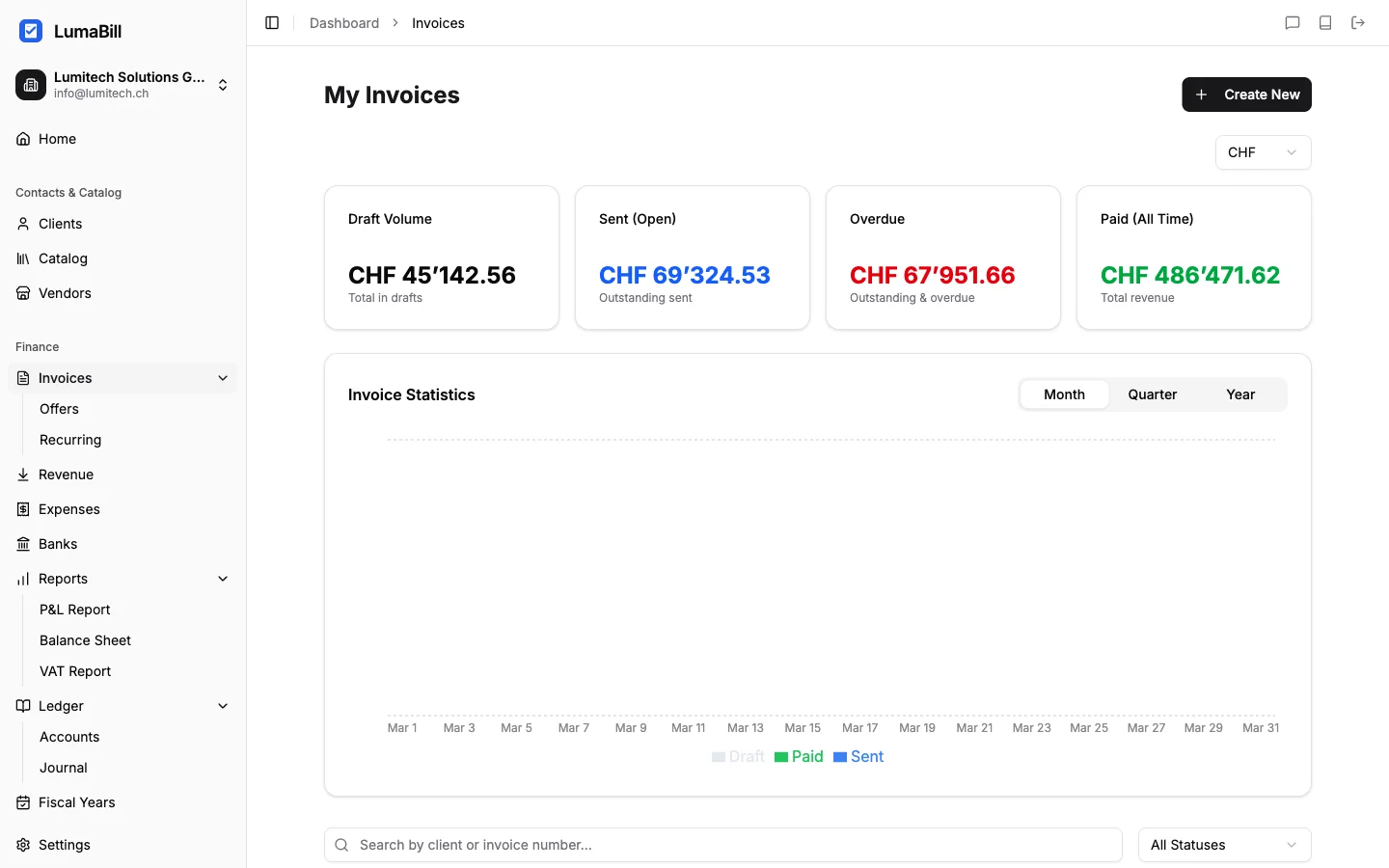
Navigate to Invoices in the dashboard and click New Invoice. Lumabill opens the invoice editor with a live preview of your document.
Step 2: Select a Client
Click Select Client to choose an existing client or create a new one. For your first client, enter at least:
- Name (company or individual)
- Address (street, postal code, city)
Tip: Client details are saved and automatically available for future invoices. You can also create clients in advance under Clients in the dashboard.
Step 3: Add Line Items
Add one or more line items to your invoice. For each item, specify:
- Description -- What was delivered or performed?
- Quantity -- Number of units
- Unit price -- Price per unit
- VAT rate -- Automatically pre-filled from your settings
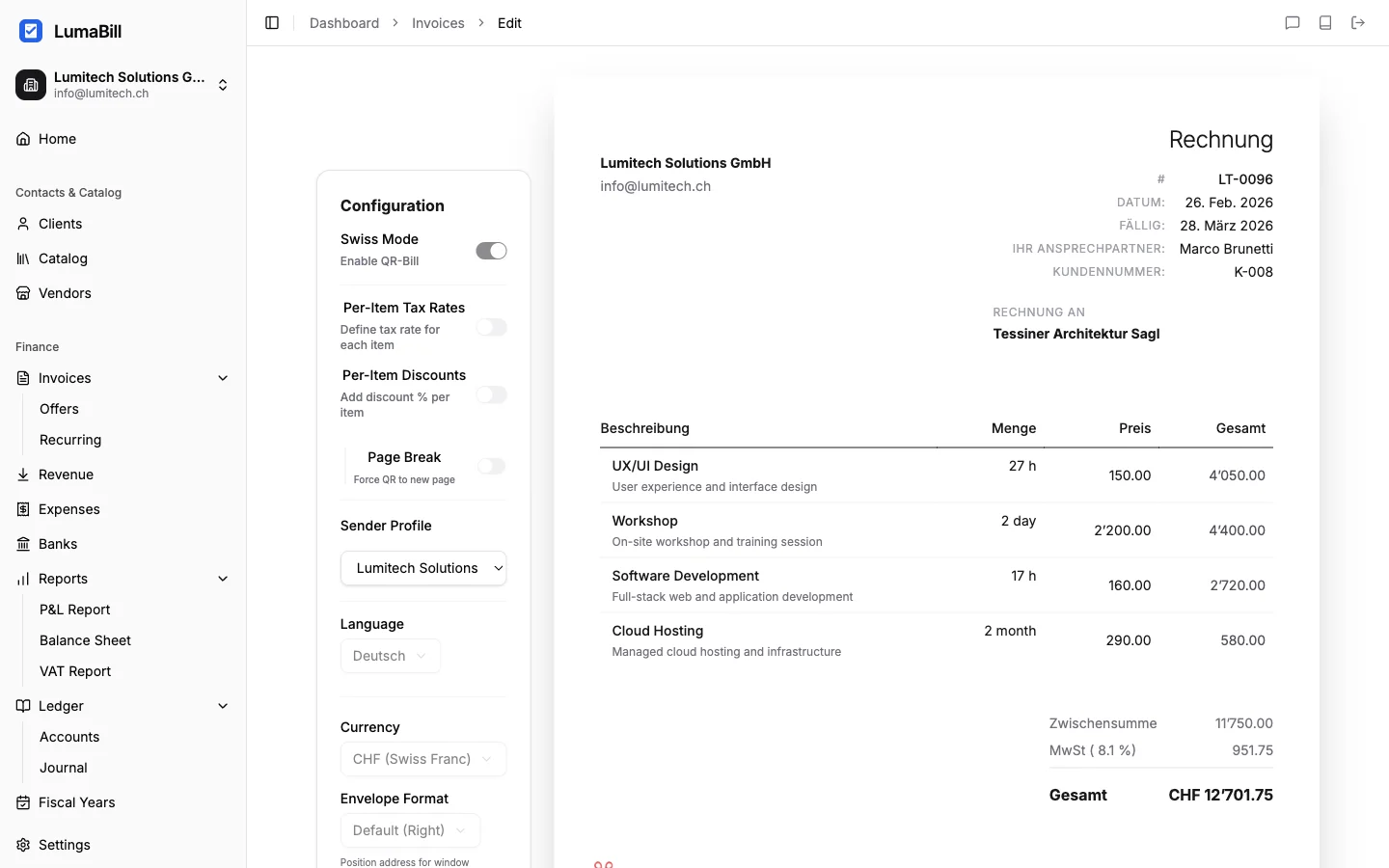
Tip: You can insert items from your Catalog. Save frequently used products and services there to create invoices faster.
Step 4: Review Invoice Details
Check the following fields:
- Invoice number -- Assigned automatically in sequence
- Invoice date -- Defaults to today's date
- Due date -- Payment deadline (default: 30 days)
- Currency -- Pre-set to your base currency, but can be changed
Step 5: Preview and QR Payment Slip
The live preview on the right side shows your invoice exactly as it will appear in the PDF -- including the QR payment slip at the bottom.
The QR code contains all payment information (IBAN, amount, reference number) and allows your clients to initiate the payment with just a few taps in their banking app.
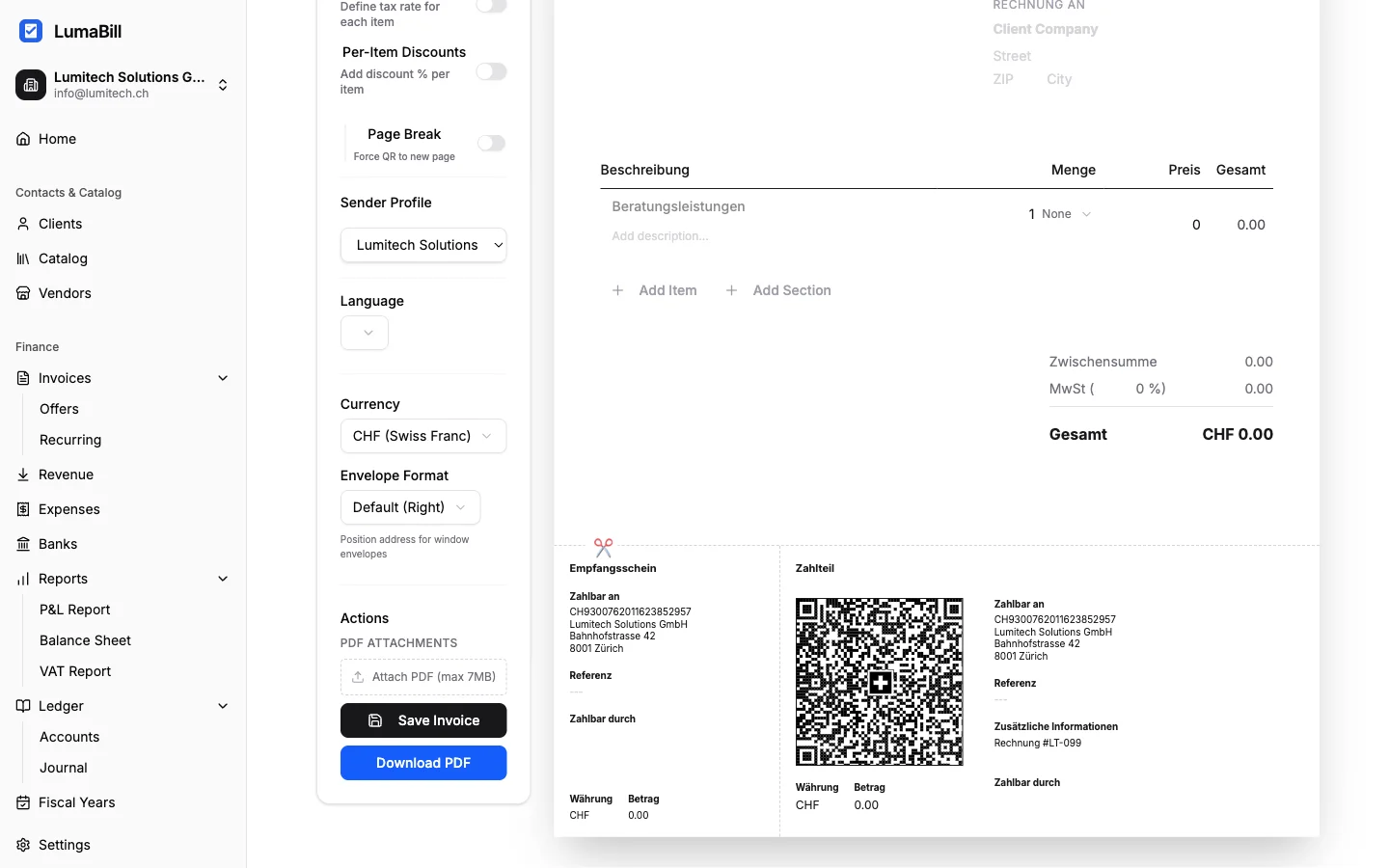
Important: For the QR payment slip to be generated correctly, your IBAN must be saved in your company profile. Check this under Settings > Company Profile.
Save and Send Your Invoice
Download as PDF
Click Download PDF to save the invoice as a print-ready PDF file. The PDF includes the QR payment slip on the last page.
Send by Email
Click Send by Email to deliver the invoice directly to your client from Lumabill. The email includes the PDF as an attachment along with a personalized cover message.
Tip: You can customize the email text and preview it before sending.
Track Payment Status
After sending, you can track the status of each invoice in the invoice overview:
- Draft -- Not yet sent
- Sent -- Delivered to the client
- Paid -- Payment received
- Overdue -- Payment deadline has passed
Next Steps
Congratulations -- your first invoice is done! Explore more features:
- QR Invoices in Detail -- Everything about the QR payment slip
- Set Up Your Catalog -- Save frequent items as templates
- Track Expenses -- Keep an eye on your costs